 CoachPro Tools
The part of coaching nobody taught you
The session ends, and then comes the other part: opening the Word template, working out which number is next, copying the client's details, calculating the tax, exporting the PDF, emailing it and noting somewhere that it still needs to be paid. With five clients it takes a while. With twenty, it is an afternoon a month and a couple of invoices that never get paid because nobody remembered to chase them.
The Invoicing module puts all of that in the same place where your clients already are. In the platform's own words: issue invoices and receipts to your clients, with your own numbering and your own details; they are stored here, so you never have to reinvent the number. It sits in the menu, in the Your business section.
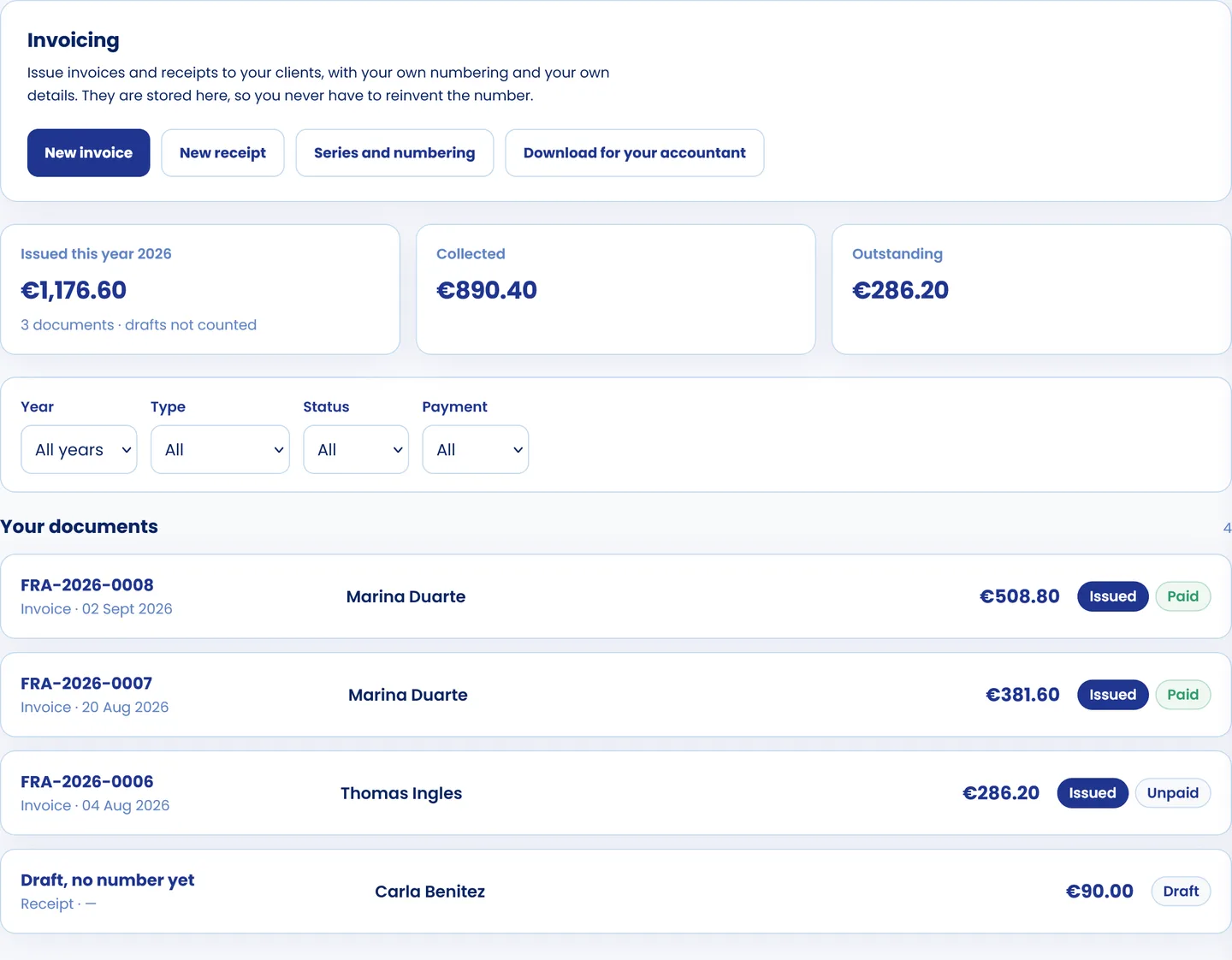
What you issued this year, what you collected and what is still outstanding, at the top. Below, each document with its number, client, amount and status.
What you see when you open it
Three figures: issued this year, collected and outstanding. Drafts do not count: only documents with a number are added up. Below, your documents, which you can filter by year, type, status and whether they have been paid. The question "who still owes me?" is answered with a single filter.
Invoice or receipt
The platform tells the two apart, and explains it when you choose: an invoice carries your numbering, their tax details and the tax breakdown; a receipt is a simple proof of payment, with no tax. Each one has its own series. The first time you open the module both are created for you: FAC for invoices and REC for receipts.
Series and numbering
For each series you choose the prefix, the separator, how many leading zeros the number has and whether it restarts every year. The platform shows you what the next number will look like before you save. Once you have issued with a series, its format stays fixed until the following year, so two different formats never live side by side in the same year.
What each document carries by default
The series also stores the currency, the tax and the withholding, the payment terms ("Payment by bank transfer within 15 days"), a tax regime text if your activity is exempt, and the document footer. You write them once and they appear on every document.
Your country's taxes, filled in for you
Choosing your country proposes its tax and withholding. The ones built in: Spain (21% VAT and 15% IRPF withholding), Mexico (16% VAT), Argentina (21% VAT), Colombia (19% VAT), Chile (19% VAT), Peru (18% IGV), the United States (no tax by default) and India (18% GST). The name of the tax ID also changes to match each country.
These are default values and you can edit them. As the platform puts it, you can type over them: an exempt invoice, an intra-EU one, or a different rate. Rates change by law whenever they like; if one goes out of date, you correct it in your series. And when in doubt about what applies to you, your tax adviser has the final word.
From draft to issued invoice
An invoice starts as a draft: you pick the client, add the items with their quantity, price and discount, and see the subtotal, tax, withholding and total as you type. You can add notes that appear on the document and internal notes that never do. A draft can be saved, changed and deleted without consequences.
When you press Issue the document gets its number and is locked. Before that, the platform checks what is usually missing: that your billing details are complete and, for an invoice, that the client has a legal name and a tax ID. If they do not, it tells you and offers to issue a receipt instead.
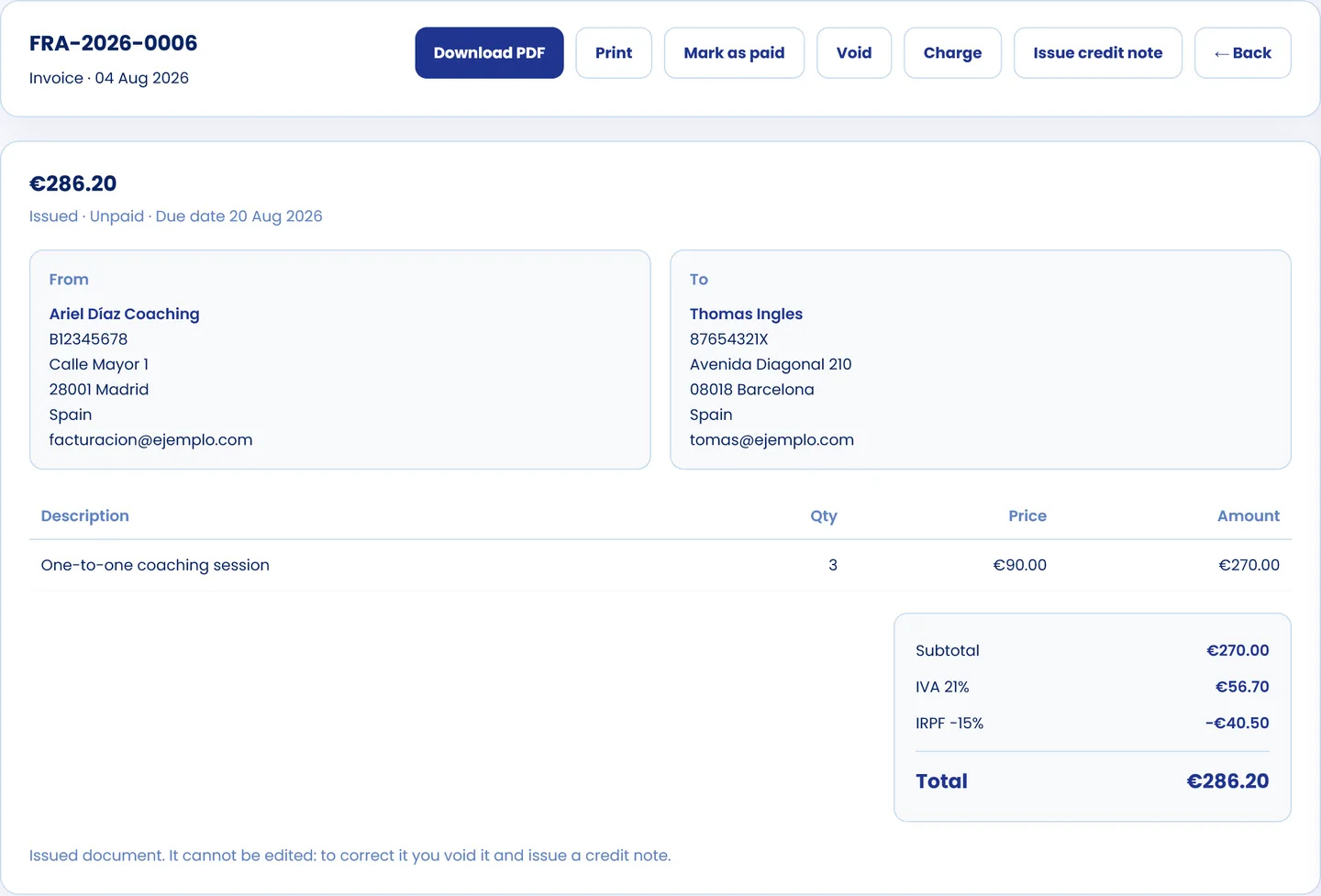
An issued, unpaid invoice: issuer, client, items, taxes and total, with everything you can do with it at the top.
Voiding, with the reason in writing
An issued invoice is not edited: it is voided. To void it you have to write the reason, which is stored and printed on the document. As the platform explains, two years from now, when someone asks why that number is missing from the series, the answer will be right there. The number stays taken and is never reused.
The credit note
To record a refund in your books you issue a credit note: it is created in negative, with the same lines and its own numbering, and the original invoice is not touched.
Getting paid through your own Stripe account
In My account → Payments you connect your Stripe account, or create one in that same step if you do not have one yet. From then on, every issued and unpaid invoice shows a Charge button: it generates a payment link you send to your client.
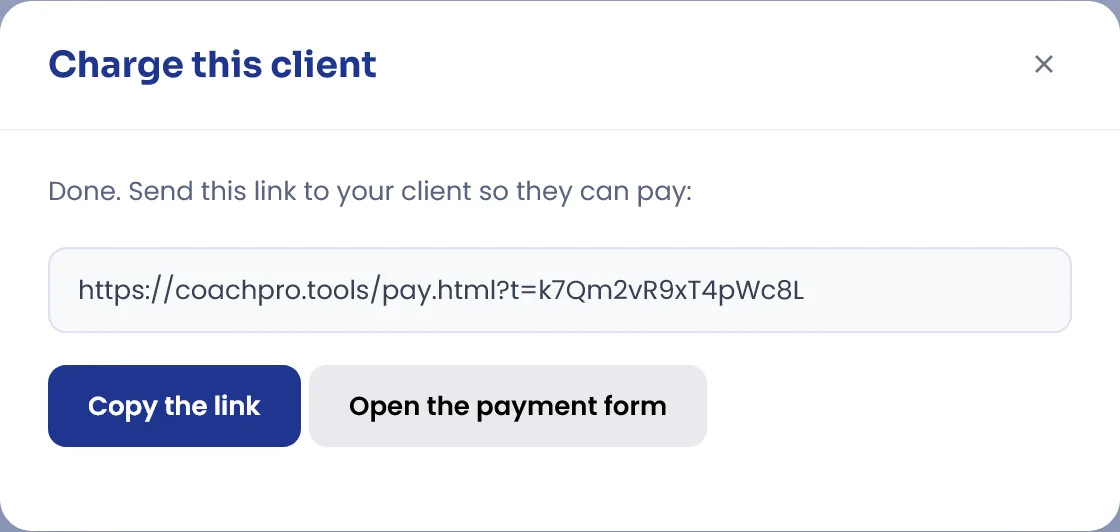
The payment link, ready to copy and send to your client.
- No middleman: the money goes straight into your Stripe account, and CoachPro takes no commission.
- In instalments: you can split an amount into several instalments. Each instalment generates its own document with your numbering; your client pays the first one with the link and, from the second one on, it is charged automatically to the same card.
- Invoices that mark themselves: if you switch it on, the platform checks your Stripe account for the status of the payments you created from CoachPro and marks the paid invoice as collected. It does not look at the rest of your Stripe activity.
If the client pays by bank transfer or in cash, you mark the invoice as paid by hand, with the payment method.

The client pays from the link, by card. You no longer chase anyone about a bank transfer.
Invoice and get paid where you already work with your clients
Invoicing, payments through your own Stripe, CRM, scheduling and the interactive tools in the catalogue, in a single account.
See plans and pricing →The PDF, printing and your brand
Any document with a number can be downloaded as a PDF or printed. A draft cannot, so nothing that looks like a valid invoice ever circulates without being one. If you have White Label switched on, the document carries your logo. Without White Label it carries none: it is your invoice to your client, and the platform's brand has no place in between. PDF download works from a computer.
Several currencies without mixing numbers
If you work with clients in different countries, each invoice is issued in, and stays in, its own currency. To see your income added up, you enter your own exchange rates, the ones your bank gives you, and the three figures at the top are converted into the currency you choose. If a rate is missing, that currency is left out of the total and the platform tells you so, instead of handing you a made-up figure.
What you hand to your accountant
The Download for your accountant button exports the year's issued documents in a file with everything your accountant needs: number, type, dates, client and their tax ID, countries, subtotal, tax and withholding with their rate and amount, total, currency, status, payment date, reason for voiding, and which invoice each credit note corrects.
Connected to everything else: on each client's record you see what you have issued to them, what has been collected and what is outstanding, plus an Invoice button to issue a document from there. And the Revenue figure in Analytics comes from your paid documents. It is the difference between keeping invoicing on the side and having it inside your practice, something we cover in how to centralise your coaching practice.
Conclusion
Invoicing properly is part of making coaching a business and not just a calling. The Invoicing module takes the repetitive work off your plate: the numbering, the tax maths, the PDF, the payment link, the list of who owes you and the file for your accountant. What is left is the part that really is yours: deciding how much you charge, and whom.
Discover CoachPro Tools →